ogmini - Exploration of DFIR
Having fun while diving into the world of DFIR / 4n6.
About Blog Posts by Tags Research Talks/Presentations GitHub Search RSS
Examining Tailscale Artifacts - Part 4
by ogmini
Tailscale has the ability to run “unattended” on Windows based machines - https://tailscale.com/docs/how-to/run-unattended#windows.
On Windows, you can solve this by using “Run Unattended” mode. This configures Tailscale to run as the system instead of the currently logged in user. For example, a machine running Windows Server Edition might want to enable this to permit multiple users to connect using RDP at once.
This could be very useful for a threat actor who wanted to maintain persistence or communications with a machine. I was interested how this configuration was stored and if I could I tell which account was set to be unattended. This information is found in the server-state.conf file that we’ve been looking at already.
Running a compare on the server-state.conf before and after setting unattended mode results in highlighting two lines where changes have been made.
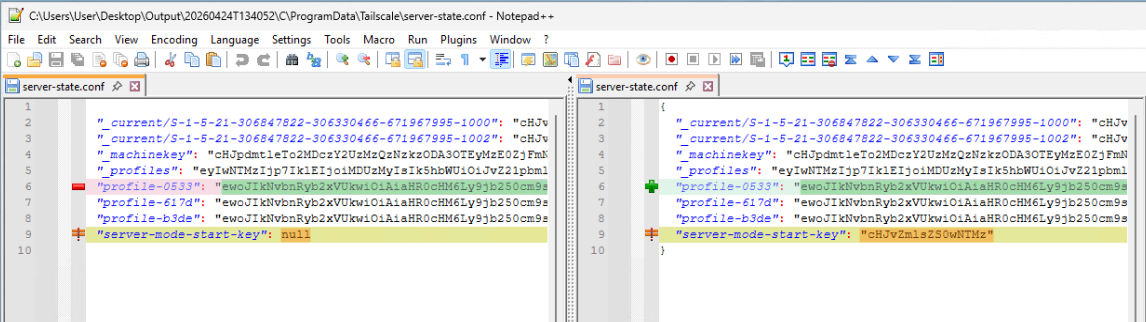
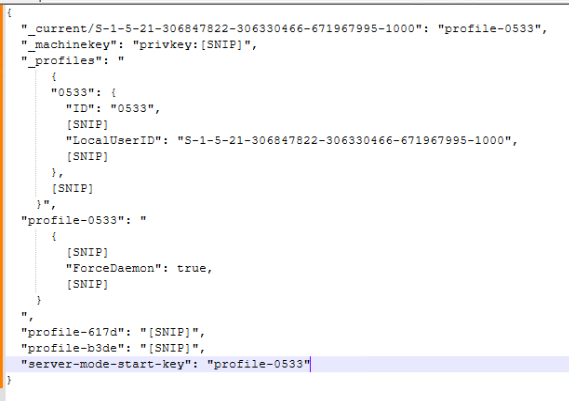
The key key here is “server-mode-start-key”. This is NULL if unattended mode is disabled and has the name of the relevant profile if it is turned on. With this information you can trace back to the relevant profile which should have “ForceDaemon” set to true. You can also link this back to the User SID. Below is a screenshot with snipped sections to highlight information related to unattended mode.
I think I’m going to write a simple python script to automatically parse the server-state.conf and decode the Base64. I’ve just been doing it manually for now using Cyberchef.
tags: #Tailscale